v1.0 · Portfolio project

School equipment management

eduAssets records who took what, keeps stock up to date, tracks maintenance and breakage, and exports reports as CSV, Excel and PDF.

Opens in Guest Mode: read-only, no sign-up.

eduAssets — school equipment management

Portfolio project

From operational challenge to full-stack implementation

A full-stack web system for managing school equipment inventory, loans, returns and incidents.

The challenge

Schools often manage laptops, tablets and accessories through scattered spreadsheets, making it difficult to know what is available, borrowed, under maintenance or broken.
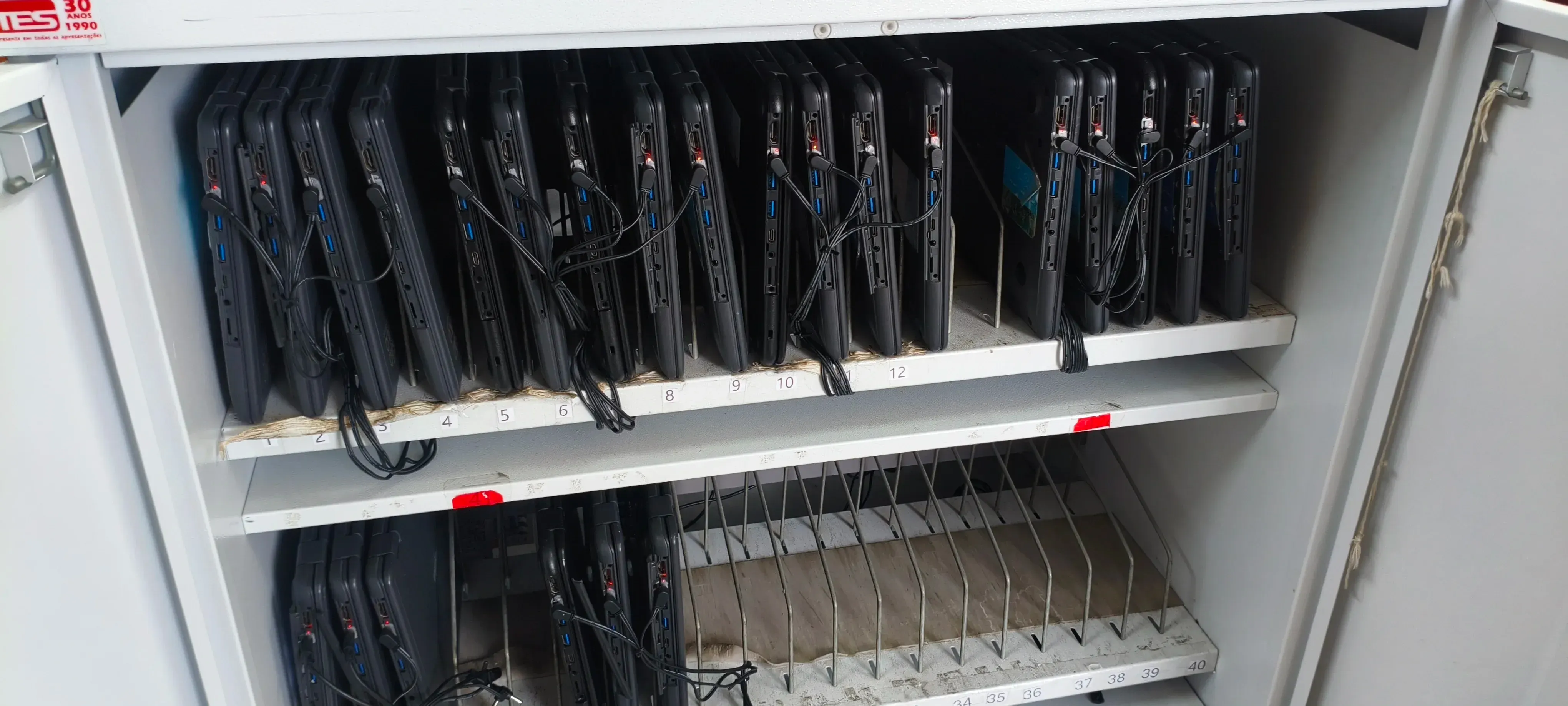
Cart with laptops stored in numbered compartments.
The scenario the system organizes: numbered equipment, borrowed and returned every day.

The dashboard answers, no spreadsheets needed:

  • How many items exist and how many are available?
  • What is on loan, and to whom?
  • What is in maintenance?
  • What is broken?
  • What was lent and returned recently?
The solution

eduAssets centralizes inventory, loans, returns, incidents, permissions and report exports in a web application.

What was built

  • Access and permissions

    JWT, session control and responsibility-based access levels.

  • Optional RFID

    Integration with Raspberry Pi or Arduino Nano.

  • Delivery

    CI/CD, application and API deployment, and operational documentation.

Architecture decisions

  • Why is the database on Neon?

    The Oracle VM has only 1 GB of RAM. Keeping PostgreSQL managed reduces memory usage, simplifies backups and separates database availability from the API machine.

  • Why separate the frontend from the API?

    The static frontend can be served globally by Cloudflare Pages, while the API remains on a VM with independent operational control.

  • Why include Guest Mode?

    To allow immediate evaluation and interaction without creating accounts or exposing administrator credentials.

  • Why is RFID optional?

    The system remains useful with conventional login and can receive hardware when hosted locally or when operations justify the investment.

Loan workflow

From loan to return in four steps

Each step updates stock immediately, so available stock is always the real one.

  1. Register

    Enter the requester, the person responsible, date and time, and items with quantities.

  2. Validate stock

    If available stock is not enough, the record is blocked.

  3. Return

    From the open loans list, confirm the return with date and time. Items go back to stock.

  4. Check the history

    Every loan stays on record with Open or Returned status.

Features

Each panel has one job

Loans and returns

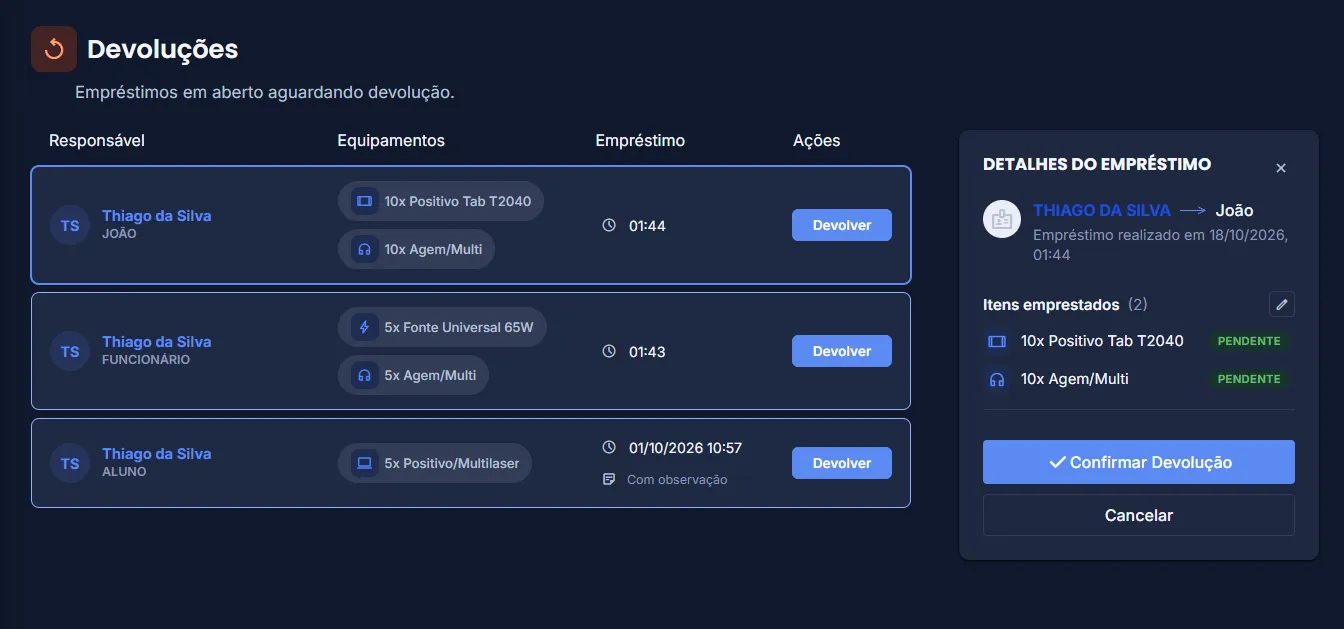
Register loans with several items and process returns from the list of open loans.

  • Items can be edited before the return
  • Race-condition-safe, atomic stock updates
  • Optional note on every loan
eduAssets Returns screen showing open loans, pending equipment and a panel to confirm a return.
Returns: open loans and details for the selected record.

Stock dashboard and history

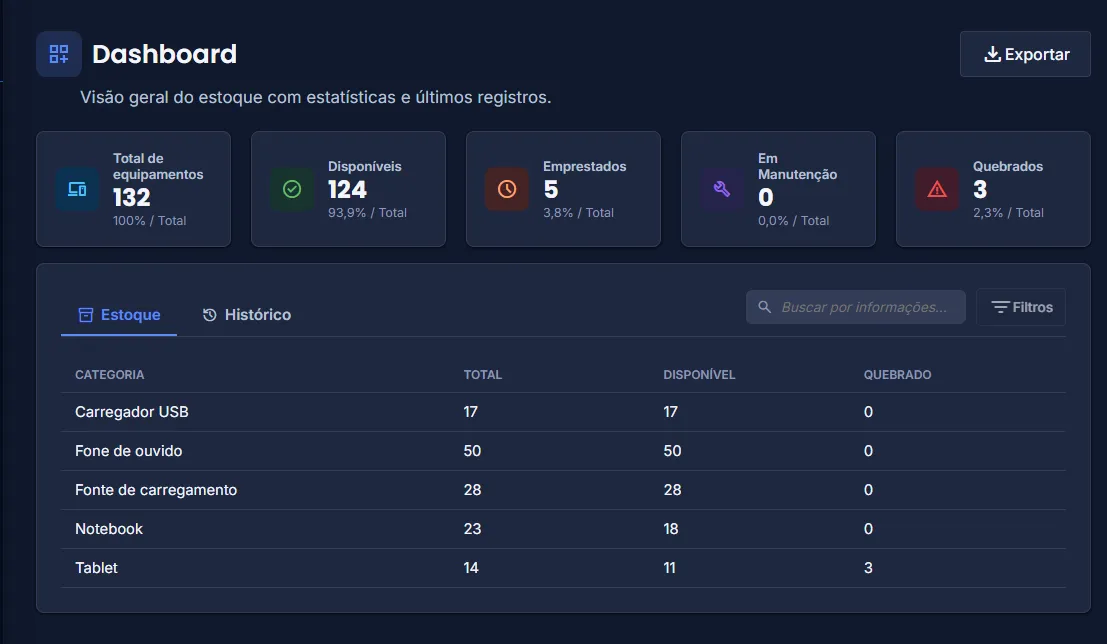
Total, available, on loan, in maintenance and broken items in summary cards. Stock is listed by category and the history shows every loan.

  • Search by category, requester, person responsible or number
  • Detailed summary per category
  • Export of stock and history
eduAssets Dashboard screen on the Stock tab, with equipment summary indicators and a category table showing total, available and broken quantities.
Stock dashboard: summary indicators and equipment availability by category.

Issue tracking

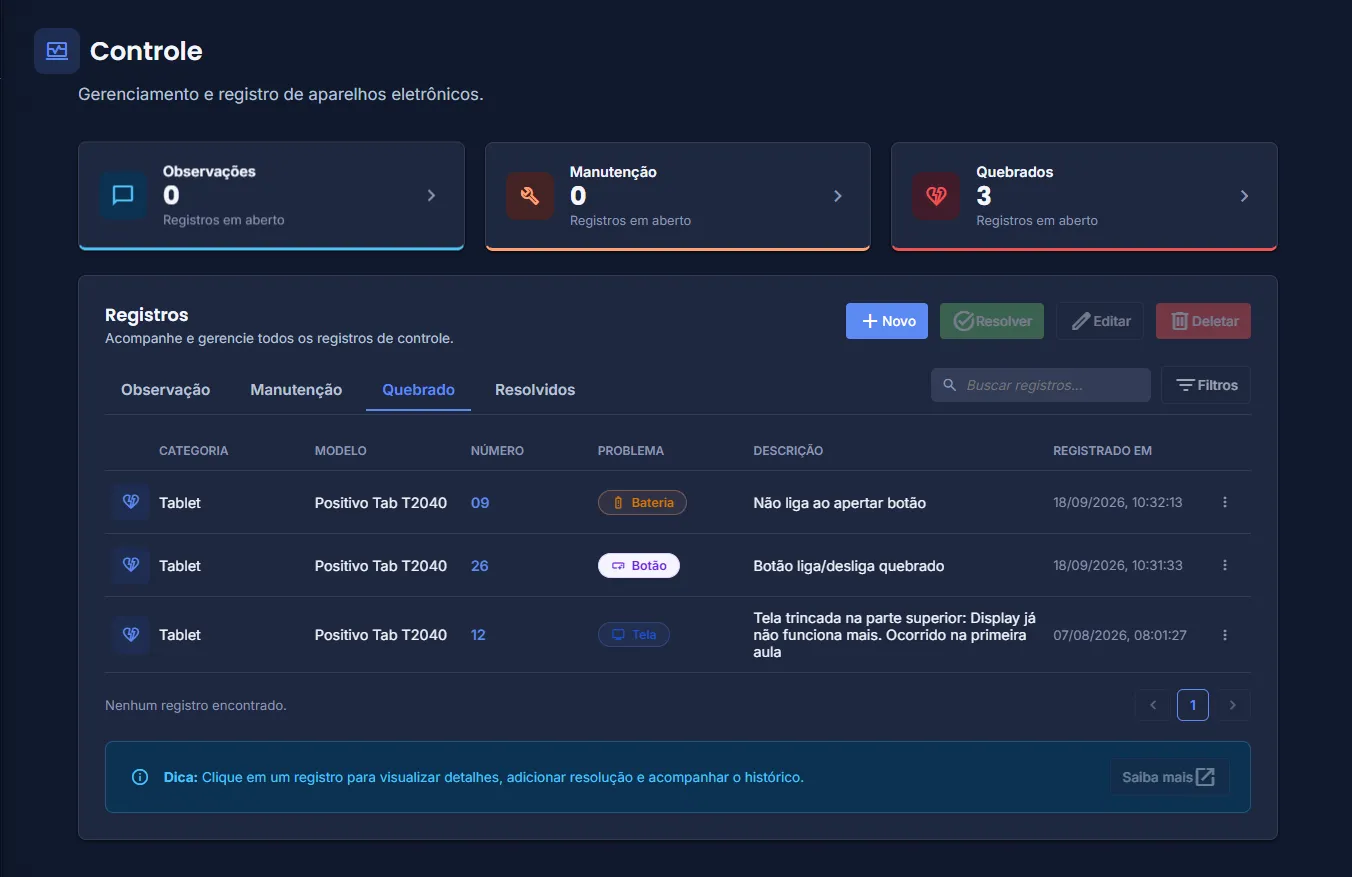
Record observations, maintenance and broken equipment. When you resolve a record, describe the fix and the item goes back to stock.

  • Observations do not change stock
  • Maintenance and breakage remove the item from available stock
  • History of resolved records, with the measures taken
eduAssets Control screen with summary indicators for observations, maintenance and broken equipment, followed by an issue list.
Control: indicators and records for observations, maintenance and breakage.

Where each item goes

Stock changes with every action, with no manual editing.

  • LoanAvailable → On loan
  • ReturnOn loan → Available
  • MaintenanceAvailable → In maintenance
  • BreakageAvailable → Broken
  • Resolve recordMaintenance or broken → Available

Also included

Project features

Beyond the panels, what the system offers in daily use.

  • Guest Mode

    Anyone can explore the system in read-only mode, with no sign-up.

  • Backend permissions

    Access levels do not rely on the interface alone: every write route validates the token.

  • Consistent stock

    Atomic, transaction-scoped updates and a blocked record when stock is short.

  • Optional RFID

    Card login with a Raspberry Pi or Arduino Nano. Password login stays available.

  • Export

    Loan history and inventory as CSV, Excel or PDF.

  • Portuguese and English

    Interface in both languages, with light, dark or system theme.

Access and security

Three access levels

Restrictions exist in the interface and are enforced by the backend too.

  • Guest

    Enters without login. Views Dashboard, history and stock. Cannot create, edit or delete.

  • Editor

    Registers loans, processes returns and creates or edits Control records.

  • Administrator

    Full access: Registers, record deletion, password change and RFID cards.

Protections

  • JWT authentication and bcrypt password hashing
  • Security headers (helmet) and login rate limiting
  • Every write request validated with Zod
  • Administrator sessions expire after 30 minutes of inactivity

Optional hardware

RFID card login

Users tap their card on the reader and sign in without typing a password.

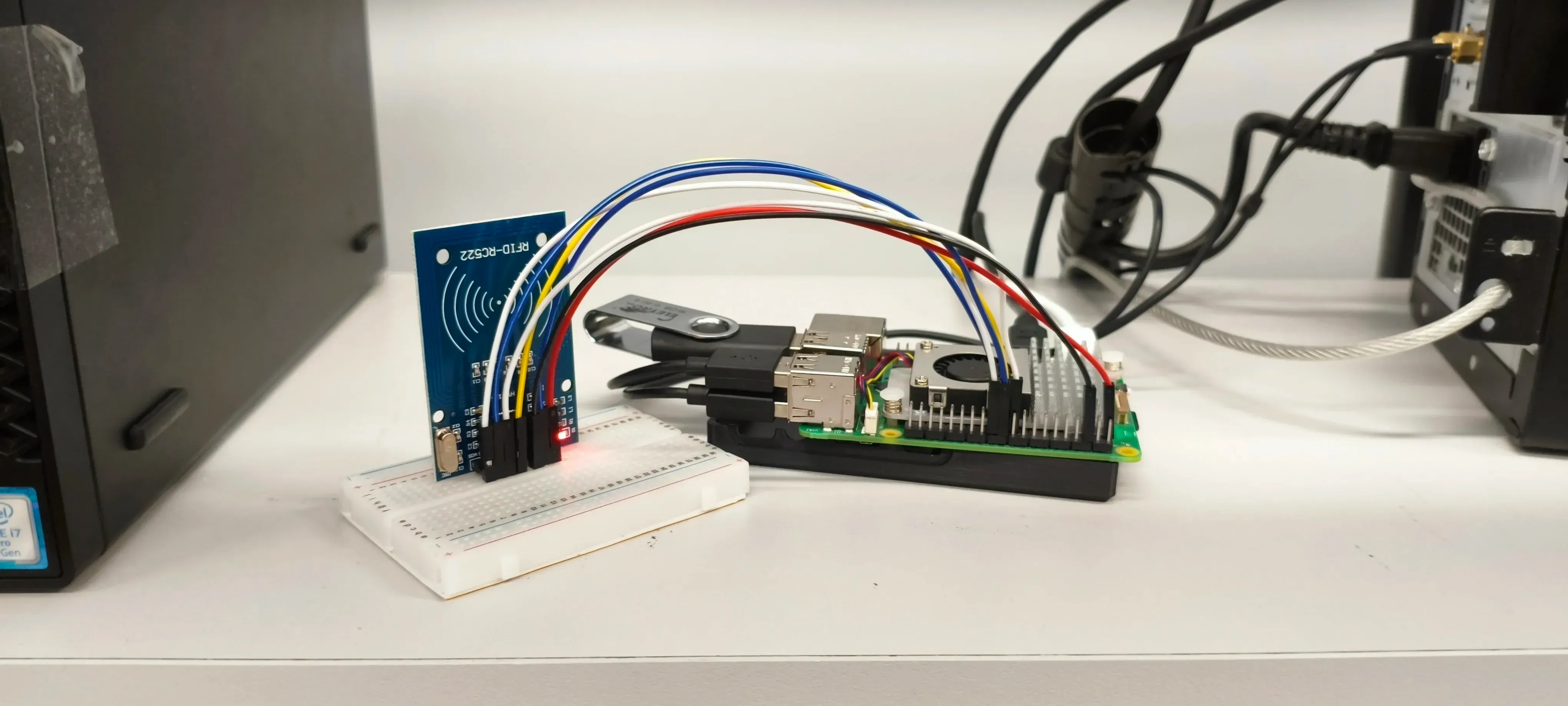
RFID reader test: tags are brought close to a sensor connected to the computer.
RFID reader board wired to a Raspberry Pi on a workbench.
RFID hardware: reader, wiring and small computer.
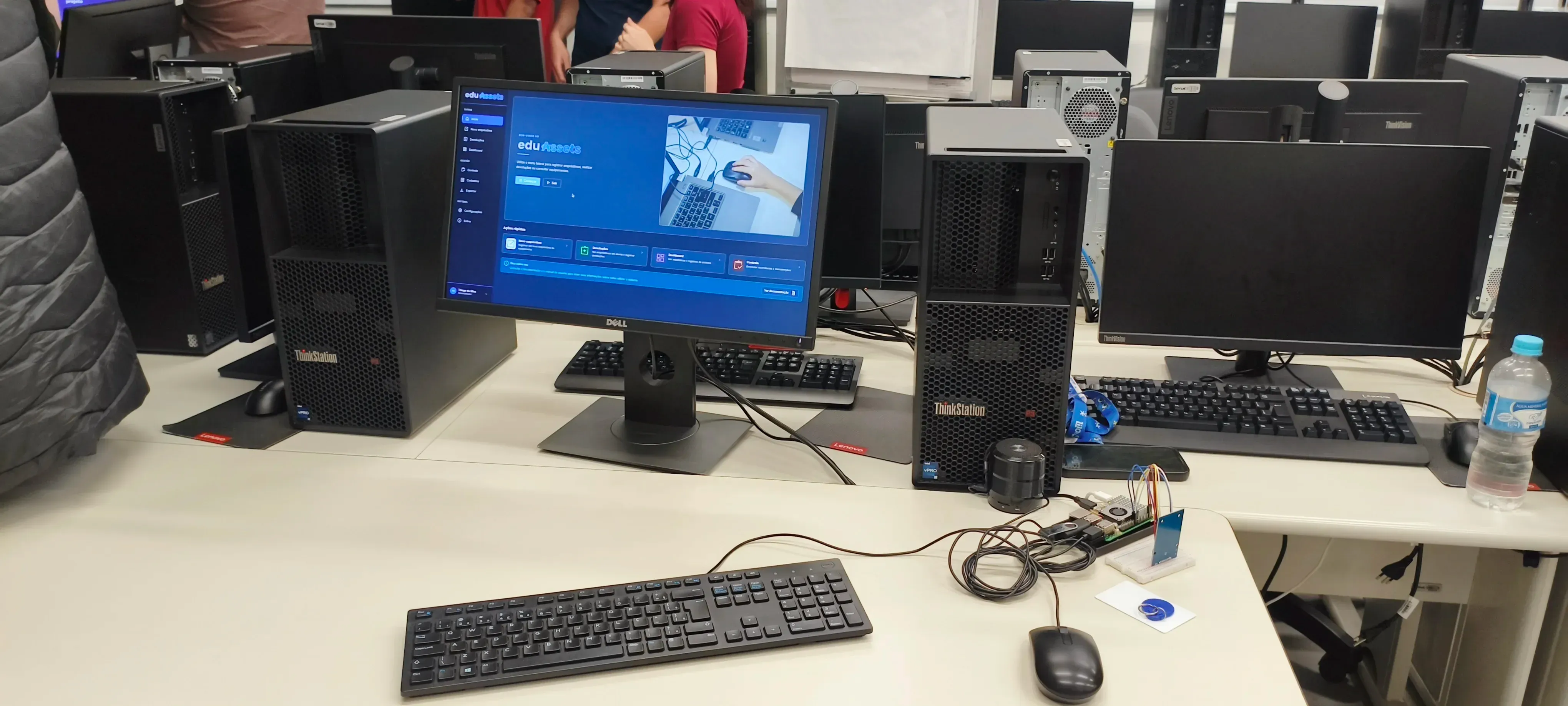
Computer lab bench with eduAssets open on a monitor and the RFID reader setup on the desk.
Test bench with eduAssets and the RFID reader setup.
  1. Card provisioning

    The administrator generates a token under Registers → Users and writes it to the card. The server stores only the hash.

  2. Reading

    A Python service on a Raspberry Pi or Arduino Nano reads the card and sends the token to the backend.

  3. Login

    The backend validates the token and notifies open tabs over WebSocket. The session starts by itself.

The reader plays distinct tones for card detected, success and error. RFID is never required.

Technology

Stack

Frontend

  • TypeScript
  • Vite
  • CSS custom properties
  • Feature-first architecture

Backend and API

  • Node.js
  • Express 5
  • Prisma
  • Zod

Database

  • PostgreSQL
  • Neon

Optional hardware

  • Python
  • Raspberry Pi
  • Arduino Nano
  • RFID reader

Hosting and infrastructure

  • Cloudflare Pages
  • Oracle Cloud
  • Docker
  • Nginx

Documentation

Project guides

Browse the user, architecture, API, development, deployment, hosting and operations guides.

Project overview

Architecture and data

Development and deployment

Operations and evolution

Source repository:GitHub

eduAssets Documents

Project guides

Loading document…

Source file

Personal profile

About the author

Developer, IT technician and Computer Engineering student.

Portrait of Thiago da Silva wearing glasses, a dark blue shirt and a light jacket.

Thiago da Silva

Developer · IT technician · Computer Engineering student

São Paulo, Brazil

Explore the system

Open eduAssets in Guest Mode and browse every panel, no sign-up.